
Compress a PDF Online Free
Compress and edit PDF files online. Reorder, rotate, delete, crop, add text, signatures, page numbers and watermarks, then download the optimized PDF.
GET MORE FROM THIS TOOL
Guide & details
Compress PDF Online Free
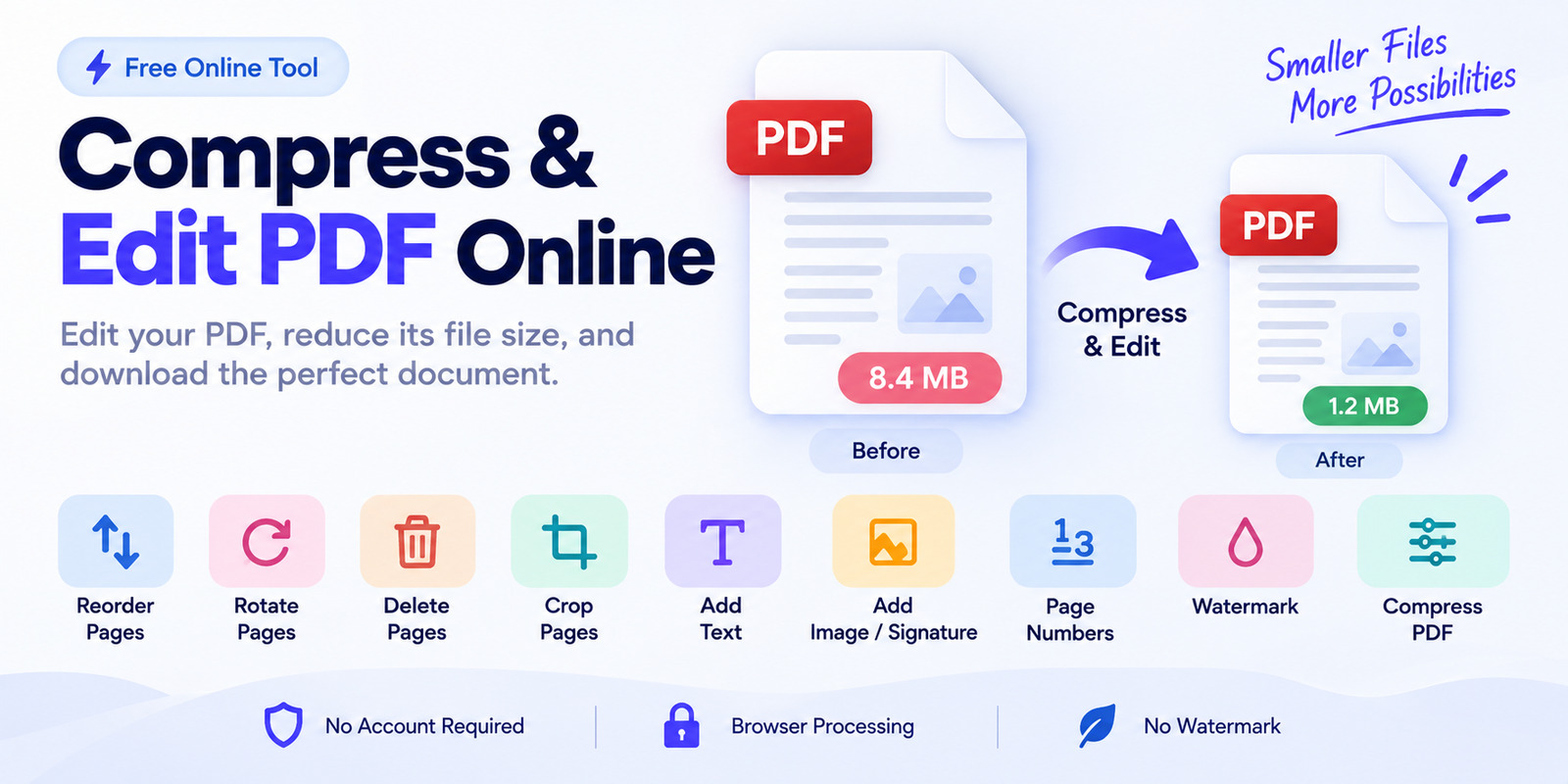
Compress & Edit PDF Online
Use this tool to edit a PDF and reduce its file size in one place. You can reorder pages, rotate or delete them, crop page edges, add text or images, insert page numbers or a watermark, and then create a smaller final PDF.
It is useful for scanned documents, assignments, resumes, invoices, forms, reports, and PDFs that are too large to email or upload.
How to Use the Tool
Upload your PDF and review the page thumbnails.
You can then:
- drag pages to reorder them
- rotate or delete pages
- add a blank page
- crop page edges
- add text to a selected page
- add an image or signature
- add page numbers
- add a watermark
- change the PDF title or author
When the document is ready, choose a compression level and click Create Optimized PDF.
Choose a Compression Level
Light
Keeps the PDF structure as close to the original as possible.
This is the better choice when you want to preserve selectable text, links, forms, and other PDF elements.
Balanced
Recommended for most users.
It reduces file size more aggressively while keeping the document readable.
Strong
Use this when file size matters more than image detail.
Strong compression can be useful for scanned or image-heavy PDFs.
Target a Smaller File Size
You can optionally choose a target such as:
100 KB · 300 KB · 500 KB · 1 MB · 2 MB
The tool will try to reduce the PDF toward that size, but the exact result depends on the number of pages, images, scans, and document content.
Edit PDF Pages Before Compression
The page thumbnails make it easy to prepare the document before creating the final file.
Drag pages to change their order, rotate pages that are sideways, remove pages you do not need, or add a blank page.
You can also select a page and crop a small percentage from its edges.
Add Text, Images, or a Signature
Use Add Text to place new text on a chosen page.
You can choose the page, font size, and approximate position.
The Image / Signature option lets you place a JPG or PNG file onto a selected page. This can be useful for adding a signature, logo, stamp, or other image.
Add Page Numbers and Watermarks
Page numbers can be added at the bottom left, center, or right.
You can also add a text watermark such as:
CONFIDENTIAL DRAFT COPY
The watermark is placed diagonally across the pages.
Compare the Original and Final PDF
After processing, the tool shows:
Original size Final PDF size Percentage smaller or larger
This makes it easy to see whether the selected compression level gave you the result you wanted.
Privacy and Local Processing
The PDF is designed to be edited and processed in your browser instead of being sent to a separate PDF conversion service.
This is useful when working with resumes, contracts, invoices, business documents, or other private files.
Use Clear All when you are finished to remove the current PDF and working data from the page.
Important Note About Strong Compression
Balanced and Strong compression can rebuild PDF pages as compressed images.
This can significantly reduce the size of scanned or image-heavy documents, but it may also flatten selectable text, links, forms, and other interactive PDF content.
Choose Light when preserving the original PDF structure is more important than maximum size reduction.
Frequently Asked Questions
Can I edit the PDF before compressing it?
Yes. You can reorder, rotate, delete, crop, add text, add images, insert page numbers, and add a watermark before creating the final PDF.
Can I compress a scanned PDF?
Yes. Scanned PDFs can often benefit from Balanced or Strong compression because they usually contain large page images.
Can I choose a target file size?
Yes. You can select an approximate target from 100 KB to 2 MB.
Will the PDF keep selectable text?
Light compression is the better option for preserving the original PDF structure. Balanced and Strong modes may flatten pages into images.
Does the tool add a watermark automatically?
No. A watermark is only added if you enter one yourself.
Can I add a signature?
Yes. Upload a PNG or JPG signature image and place it on the selected page.