
Convert Excel to JSON Online
Convert Excel (.xlsx/.xls) or CSV files into clean JSON.
GET MORE FROM THIS TOOL
Guide & details
What Is an Excel to JSON Converter?
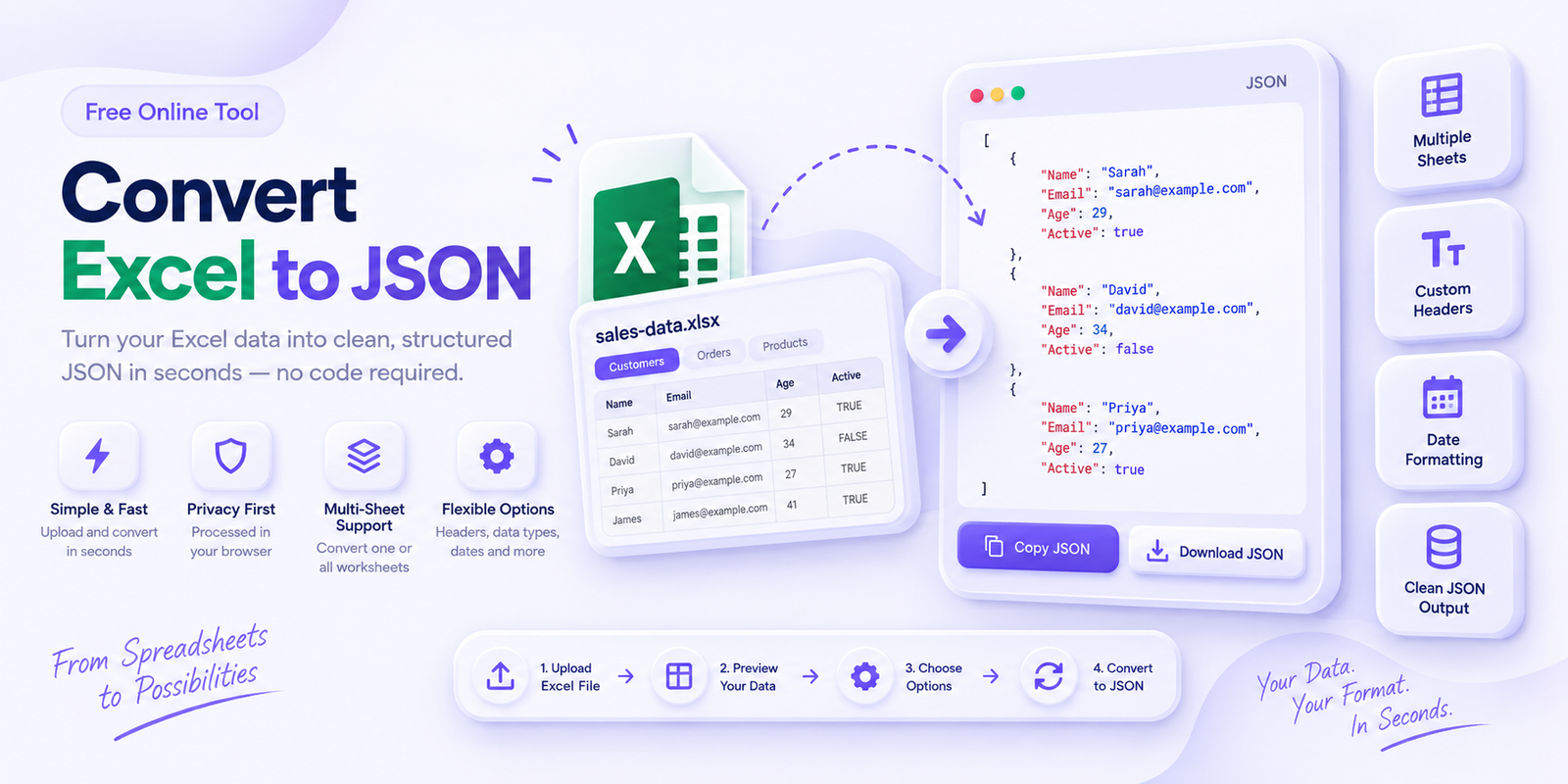
An Excel to JSON Converter turns spreadsheet data into JSON that can be used in websites, APIs, apps, databases, automation tools, testing, and development projects.
Upload an Excel file, choose the worksheet you want, preview the data, and convert it into clean JSON without writing any code.
How to Convert Excel to JSON
The process is simple:
-
Upload an
.xlsxor.xlsfile. - Choose the worksheet you want to convert.
- Check the data preview.
- Adjust optional conversion settings if needed.
- Click Convert to JSON.
-
Copy the JSON or download it as a
.jsonfile.
The preview helps you confirm that the correct sheet, headers, and rows are being used before conversion.
Convert Multiple Excel Worksheets
If your workbook contains more than one sheet, the tool shows the available worksheet names.
You can switch between sheets and convert one worksheet at a time, or choose to convert all worksheets together.
This is useful for workbooks that contain separate sections such as:
Customers · Orders · Products · Inventory
Keep Excel Headers as JSON Keys
By default, the first row can be used as JSON property names.
For example, this Excel data:
| Name | Age | Active |
|---|---|---|
| Sarah | 29 | TRUE |
can become:
[object HTMLPreElement]If your spreadsheet does not contain headers, the converter can create names such as column_1, column_2, and column_3.
Handle Duplicate or Missing Headers
Spreadsheets sometimes contain duplicate or empty column names.
Instead of silently losing data, the tool can automatically rename duplicate headers.
For example:
Email · Email
can become:
Email · Email_2
Empty headers can also be replaced with generated column names.
Preserve Numbers, Booleans, and Dates
Excel data is not always plain text.
The converter can preserve useful data types such as:
- Numbers
- True/false values
- Blank values
- Dates
For dates, you can choose a cleaner format such as ISO 8601, keep the displayed Excel value, or keep the original Excel serial number.
Choose How Blank Cells Are Converted
Different projects need different handling for empty cells.
You can choose to convert blank cells as:
null
[object HTMLPreElement]Empty string
[object HTMLPreElement]or completely omit the property.
This makes the output easier to match with your API, database, or application requirements.
Choose the JSON Structure
The tool supports different output formats depending on how you plan to use the data.
Array of Objects is the most common choice for APIs and applications.
2D Array keeps the data closer to the original spreadsheet layout.
Object by Key lets you use a selected column, such as an ID, as the main JSON key.
Check Your Data Before Converting
Before conversion, the tool can show a quick data-quality summary.
This may include:
Rows · Columns · Blank rows · Blank columns · Duplicate headers · Missing headers
These checks help you catch common spreadsheet problems before creating the final JSON.
Beautify or Minify JSON
After conversion, you can switch between two output styles.
Beautified JSON adds indentation and line breaks so the data is easier to read.
Minified JSON removes unnecessary spacing to create a smaller result.
You can copy either version or download it as a JSON file.
View the Detected Data Structure
The Data Structure option gives you a quick summary of the fields found in the converted data.
For example:
name — string price — number active — boolean created_at — date
This is useful when preparing data for APIs, application development, testing, or database imports.
Privacy First
Your spreadsheet may contain business, customer, financial, or internal information, so privacy is important.
The converter is designed to process the workbook in your browser rather than sending the spreadsheet contents to a conversion server.
Use Clear File & Data when you are finished to remove the current workbook and generated JSON from the page.
Frequently Asked Questions
What Excel files can I convert?
The tool supports common Excel formats including .xlsx and .xls.
Can I convert more than one worksheet?
Yes. You can choose a single worksheet or convert all worksheets together.
Will numbers stay as numbers?
Yes, when data-type preservation is enabled, numbers and booleans remain their proper JSON types instead of becoming text.
What happens if two columns have the same name?
Duplicate headers can be renamed automatically so one column does not overwrite another.
Can I convert Excel dates to readable JSON dates?
Yes. You can convert Excel dates to ISO 8601 format or keep the displayed or serial value.
Can I download the converted JSON?
Yes. You can copy the result or download it as a .json file.
Convert Excel to JSON Online
Upload your Excel file, select the worksheet, review the preview, and convert the data into clean JSON in seconds. Use the advanced options only when you need more control over headers, blank cells, dates, data types, or JSON structure.