
Convert JPG & PNG Images to PDF
Combine JPG and PNG images into a single PDF file.
GET MORE FROM THIS TOOL
Guide & details
Convert JPG & PNG Images to PDF Online
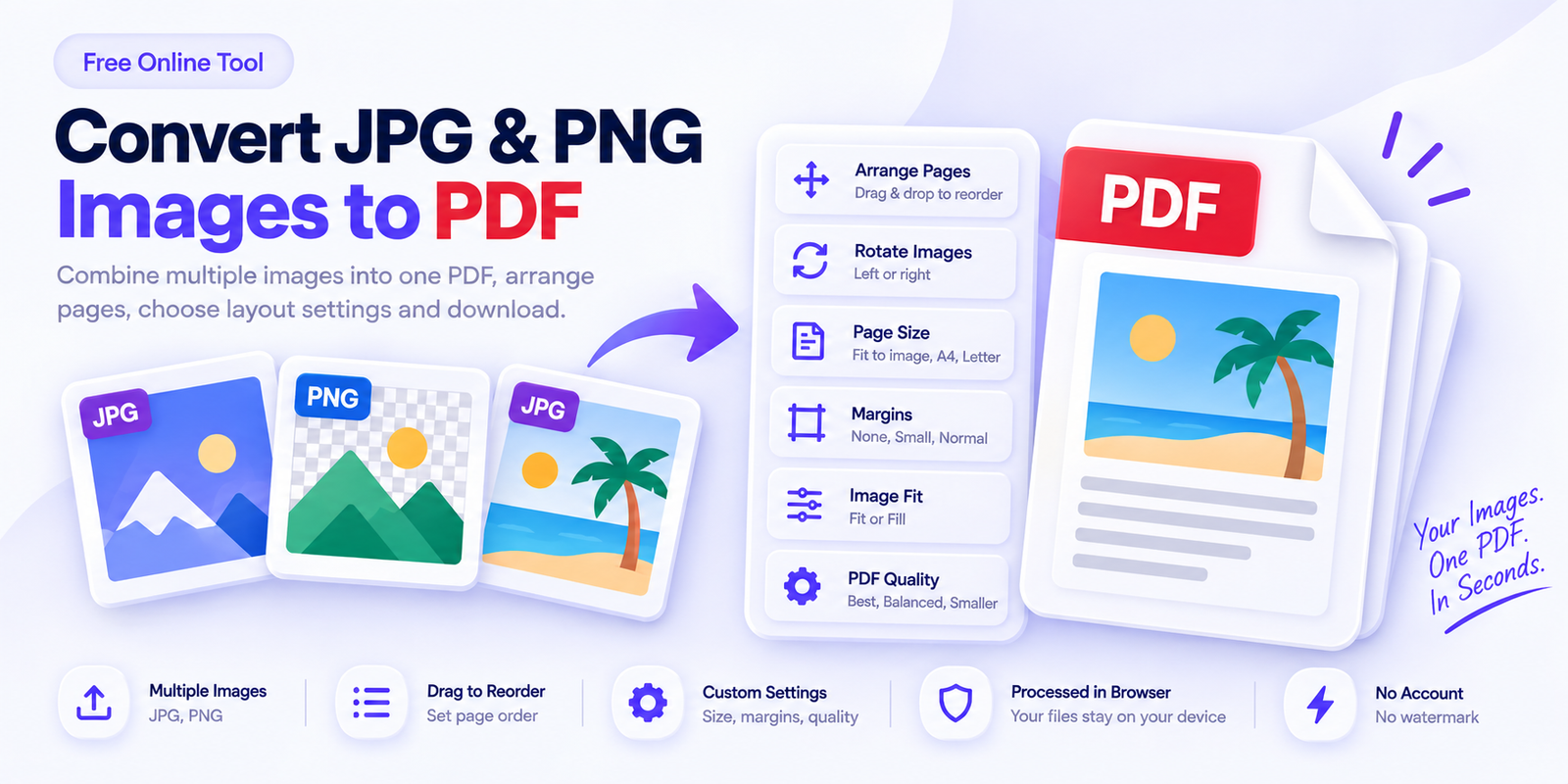
Use this tool to combine one or more JPG, JPEG, or PNG images into a single PDF. It is useful for scanned documents, receipts, assignments, forms, screenshots, product images, and other files that are easier to share as a PDF.
You can arrange the images, rotate them, choose the page size and layout, control the PDF quality, and then download the finished file.
How to Convert Images to PDF
Start by adding your JPG or PNG images.
You can either click the upload area or drag and drop the files into the tool. Multiple images can be added at the same time.
After the images are loaded:
- Check the image order.
- Rotate any image that is sideways.
- Remove any image you do not need.
- Choose your PDF settings.
- Click Create PDF.
- Download the finished PDF.
Each image becomes one page in the final PDF.
Arrange Images Before Creating the PDF
The order of the images determines the page order in the PDF.
Drag the image cards into the correct position before creating the file.
For example:
Image 1 → Page 1
Image 2 → Page 2
Image 3 → Page 3
This is useful when combining scanned document pages or photos that need to stay in a specific sequence.
Rotate or Remove Individual Images
Phone photos and scanned pages are sometimes added in the wrong orientation.
Use the rotate controls under each image to turn it left or right.
You can also remove individual images without clearing the entire list.
Choose the PDF Page Size
The tool provides several page-size options.
Fit to Image
The PDF page is based on the image dimensions.
This is useful when you want to keep the image close to its original size without adding a standard document page around it.
A4
A4 is commonly used for documents, forms, assignments, and office files.
US Letter
US Letter is commonly used for documents in the United States and some other regions.
Choose the Page Orientation
You can choose:
Auto The tool automatically chooses portrait or landscape where appropriate.
Portrait Creates vertical PDF pages.
Landscape Creates horizontal PDF pages.
For most users, Auto is the easiest option.
Add or Remove Page Margins
Margins control the space around each image.
You can choose:
None for maximum image area.
Small for a little space around the image.
Normal for a more traditional document layout.
If you are converting scans of a document, small or normal margins can make the PDF easier to read.
Fit or Fill the PDF Page
The Image Fit setting controls how the image is placed on the page.
Fit
The entire image stays visible and keeps its original proportions.
This is the recommended option for most documents and photos.
Fill
The image fills more of the PDF page, but part of the image may be cropped if its shape does not match the page.
Use this when filling the page is more important than keeping every edge of the image visible.
Control PDF Quality and File Size
You can choose between three quality settings.
Best Quality
Keeps more image detail and normally creates a larger PDF.
Use this for high-quality photos, detailed scans, or documents that may be printed.
Balanced
Provides a good balance between image quality and PDF size.
This is the recommended setting for most users.
Smaller File
Reduces the output size more aggressively.
This can be useful when the PDF needs to be emailed or uploaded to a website with a file-size limit.
The tool also shows an approximate PDF size before conversion so you can choose the most suitable quality setting.
Add Page Numbers
Open More Options if you want to add page numbers.
Page numbers can be placed at:
Bottom center or Bottom right
This is useful for assignments, reports, scanned records, and other multi-page documents.
Choose a PDF Filename
You can enter your preferred filename before creating the PDF.
For example:
scanned-documents.pdf
assignment-pages.pdf
receipts-september.pdf
If you do not change the filename, the tool uses the default name.
Add PDF Title and Author
The optional PDF title and author fields can be used to add basic document metadata.
For example:
PDF Title: Project Documents Author: John Smith
These fields do not appear as visible text on the PDF pages.
JPG and PNG Images Can Be Used Together
You do not need to convert every image to the same format first.
JPG, JPEG, and PNG files can be mixed in the same PDF.
For example, a single PDF can contain:
Page 1 — JPG
Page 2 — PNG
Page 3 — JPG
The tool handles the conversion during PDF creation.
Your Images Keep Their Proportions
Images are not stretched to force them into a different shape.
The tool keeps the original image proportions while placing them on the selected PDF page.
If you choose Fill, some cropping may occur, but the image itself is not distorted.
Privacy and Local Processing
Image files can contain private documents, personal photos, receipts, IDs, business records, or other sensitive information.
This converter is designed to process the selected images in your browser and create the PDF locally rather than requiring a separate conversion server.
The tool does not need an account and does not add a watermark.
When you are finished, use Clear All to remove the selected images and generated PDF from the current tool session.
Common Uses for an Image to PDF Converter
This tool can be useful for:
- turning scanned document photos into one PDF
- combining assignment pages
- saving receipts or invoices together
- converting screenshots into a document
- combining application documents
- creating a PDF from product or reference images
- preparing files for email or online submission
Frequently Asked Questions
Can I combine multiple images into one PDF?
Yes. Add several JPG or PNG images and they will be combined into one multi-page PDF.
Can I change the page order?
Yes. Drag the image cards into the order you want before creating the PDF.
Can I rotate images?
Yes. Each uploaded image has controls for rotating it left or right.
Can I use both JPG and PNG files?
Yes. JPG, JPEG, and PNG images can be mixed in the same PDF.
Will my images be cropped?
Not when Fit is selected. Fit keeps the full image visible. The Fill option may crop part of an image so it can fill more of the page.
Can I make the PDF smaller?
Yes. Choose Smaller File under PDF Quality. The Balanced setting is usually a good choice when you want both reasonable quality and a manageable file size.
Can I add page numbers?
Yes. Open More Options and choose bottom-center or bottom-right page numbering.
Does the tool add a watermark?
No. The generated PDF does not include a tool watermark.
Do I need an account?
No. You can create and download the PDF without creating an account.